An overview of BoltonSea's media and file management capabilities is a core aspect of the platform.
BoltonSea supports all media file types, including images, videos, text documents, PDFs, and others. All media files are stored within Media groups, which function similarly to folders for organizing user-uploaded content.
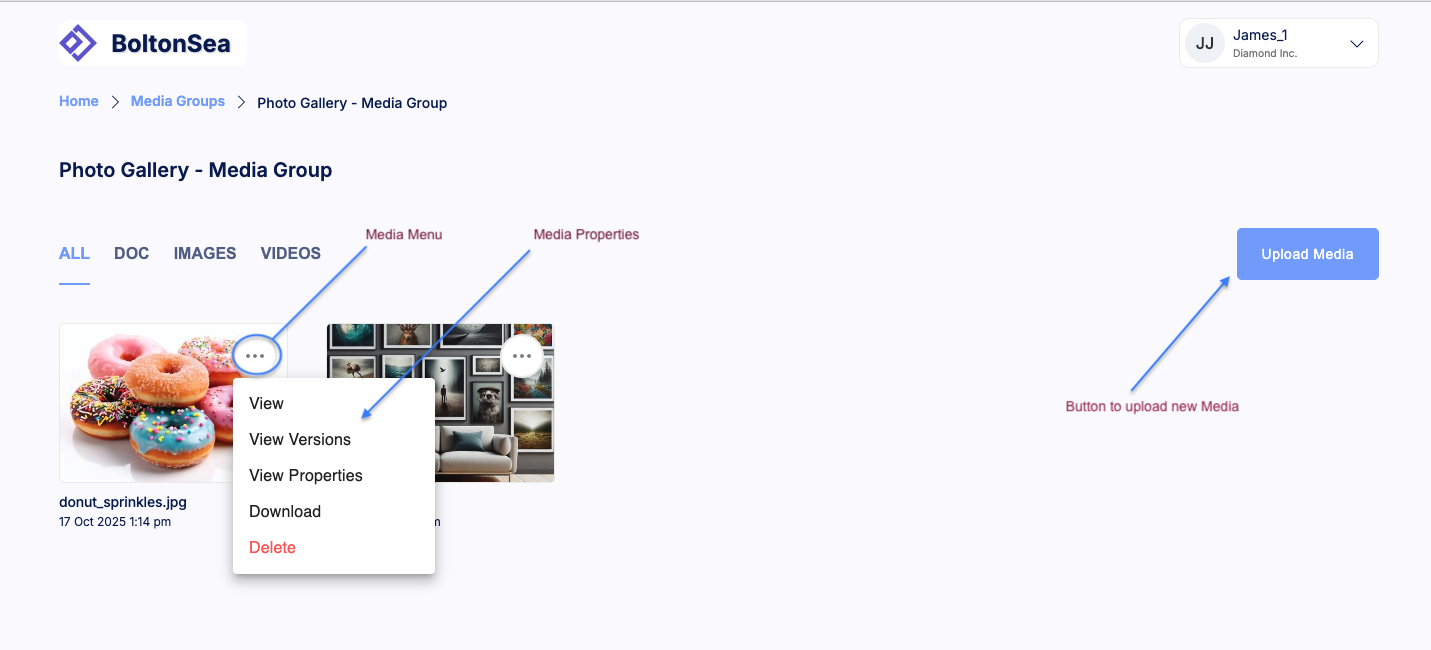
How to Upload a File
Download through the Media Group: This outlines the steps to download media files through a Media Group. To download a specific file, please follow these steps:
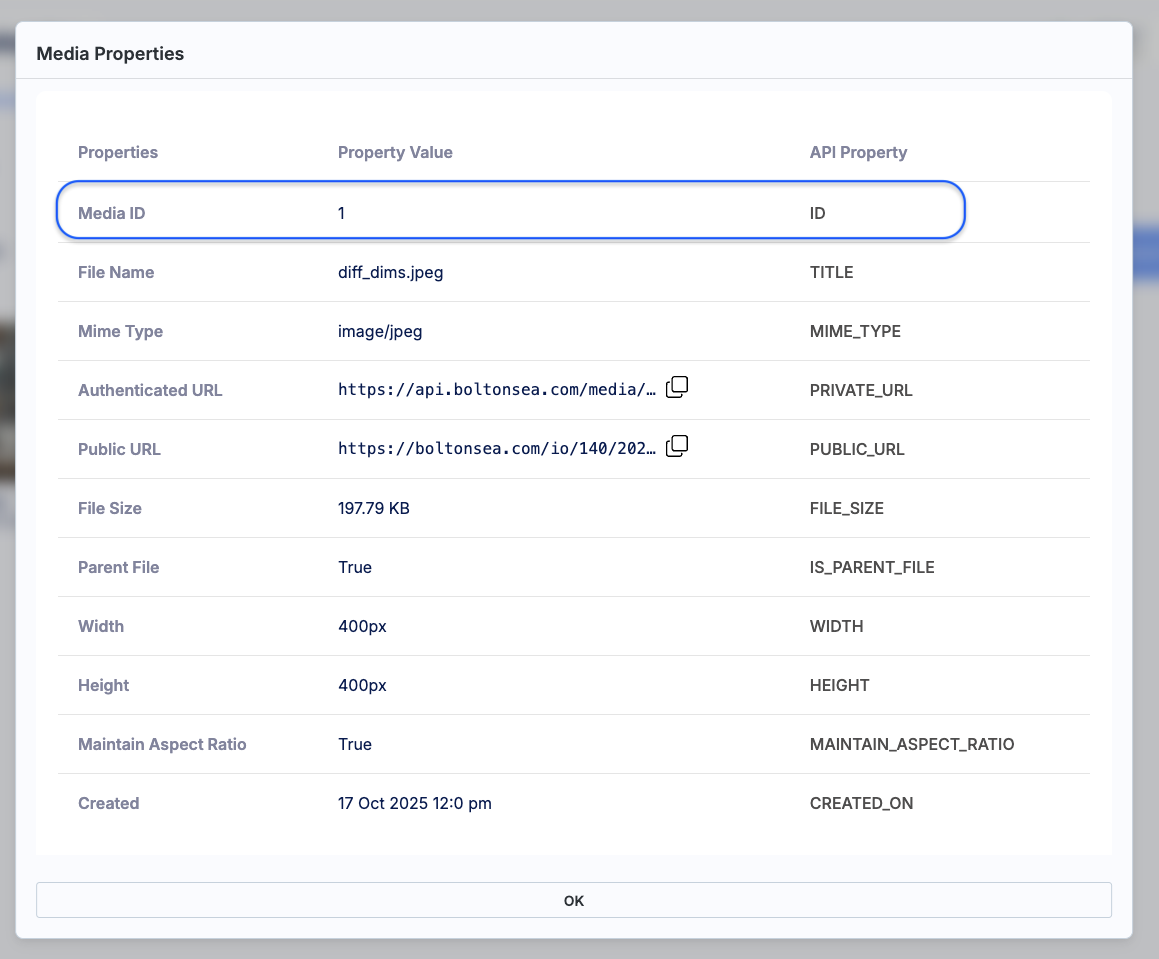
Download through Media Group API Endpoint: This method differs from downloading media through the media group page as it involves extracting the media URL from an API request. Users can query the list of media within a media group, and subsequently, the URL of the specific media can be utilized to download the file through an external platform, such as a web browser.
Should you have any inquiries regarding Media or require additional assistance, please contact us through the contact-us page.